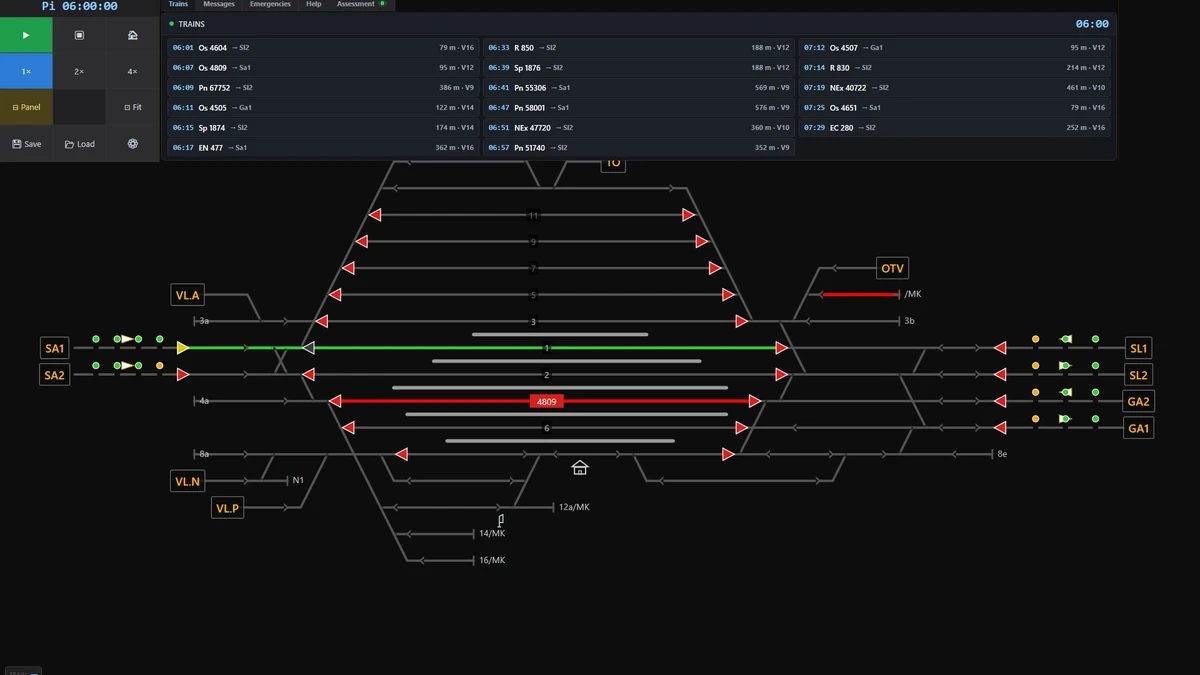
For a route with several stations, operate the entire line in one layout, including entry consents, routes, shunting, and departures at every station. The relay desk is not available on these routes, so use the basic view or a type 2 or type 3 screen. If the line is long, arrange the layout across multiple monitors and move the auxiliary windows to side screens so the main monitor remains available for the track layout.
Set up the line across multiple monitors
Prime Rail Control can spread one continuous route over up to four monitors placed side by side. Each additional monitor displays the next section of the line. Panning or zooming on any monitor affects the complete group, so the screens remain aligned as one working surface.
- Press
Ctrl+Mto open the monitor layout window. - Use
+ Addon a monitor to add it to the monitor chain. The monitor containing the main window cannot be removed. - Drag one monitor onto another if you need to swap the line sections assigned to them.
- Arrange the monitors in the window to match their real physical positions.
- Confirm the arrangement with
OK.
Move operating windows to another monitor
Auxiliary windows can be moved freely, including onto a different monitor. The simulator remembers each window's position and size. With multiple monitors connected, press Ctrl+Shift+B to move all currently open auxiliary windows to the side monitors and leave the main monitor for the route layout.
| Window | Shortcut | Use |
|---|---|---|
| Dispatcher desk | F4 or F7 | Points, track consents, call-on signal, and faults |
| Train entry consent | Ctrl+H | Trains requesting entry |
| Line consents | Ctrl+U | Consent for each single-track line |
| Directional group | Ctrl+D | Track occupancy in a marshalling yard |
| Train graph | G | Planned and actual running |
| Keyboard shortcuts | H | Available simulation keys |
Adjust the working layout
Press Ctrl+L to enter layout mode. The control panel, board, signal preview, and random-trains slider receive blue frames and can then be moved or resized. Press Ctrl+L again to finish. To restore the default arrangement, use Ctrl+Shift+L.
Alt+Entertoggles full-screen mode and covers the Windows taskbar.Ctrl+Ttoggles exact train positions. When disabled, the display shows track occupancy and train numbers only.Ctrl+Otoggles automatic block signals.Ctrl+BandCtrl+Icontrol the board contents and live data.
Monitor the whole route
Press G to open the train graph for the complete line. It shows planned and actual running and helps identify where trains are losing time across the several-station route.