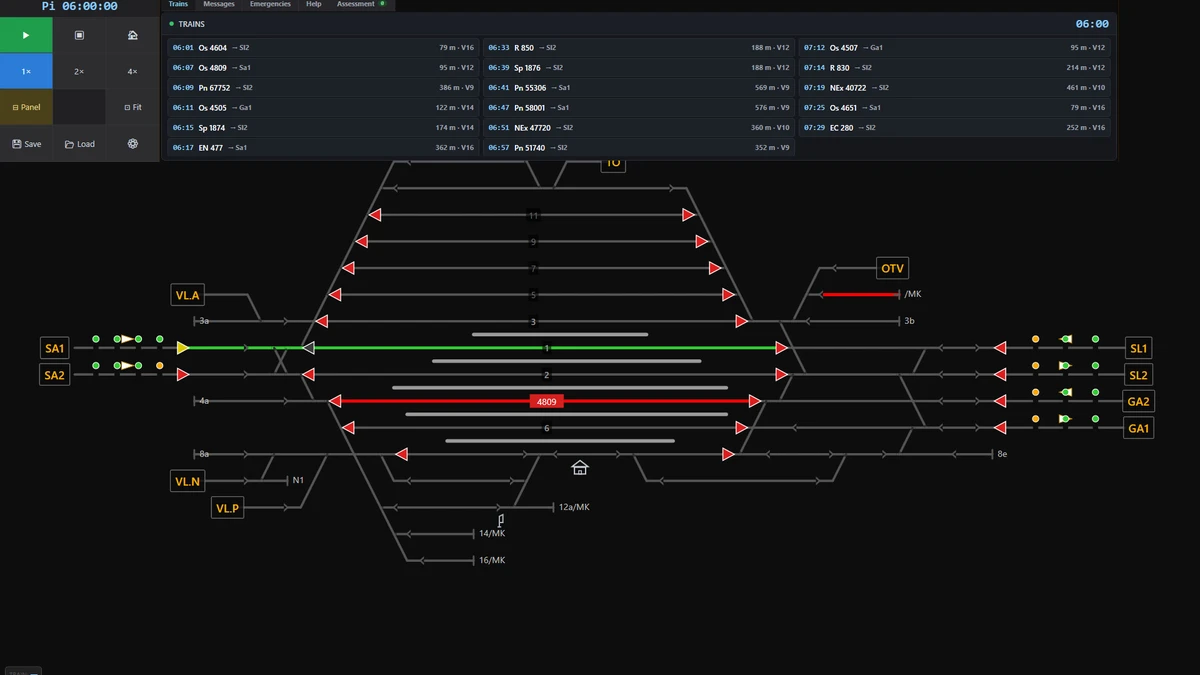
To efficiently operate Prime Rail Control, it is recommended to keep the shortcut window open at all times by pressing the H key, as most train commands operate on the train or track currently under the mouse cursor. Utilize a combination of mouse actions, function keys, and specific Ctrl shortcuts to manage routing, train status, and dispatcher functions without needing to memorize every command.
Mouse Input Controls
Basic Interaction
- Left click: Used to build a route by clicking the start signal and then the destination. It also selects a train.
- Ctrl + left click on a signal: Builds a shunting route instead of a standard train route.
- Shift + left click on a signal: Initiates a manual route by allowing you to trace the path through the points yourself.
- Alt + left click on a signal: Calls-on a signal, initiating a guided procedure before building the route from that signal.
- Ctrl + left click on a shunting set: Allows for shunting on verbal order when no signal is present; subsequently, click the destination track.
- Right click: Displays the context menu for a specific signal or track.
- Middle button + drag: Pans the view across the simulation.
- Wheel: Used to zoom the view in or out.
- Esc: Cancels any route currently being built, hides track information, and closes popups.
Viewing Train and Station Information
Various function keys provide quick access to detailed information regarding trains and the station environment.
- F1: Displays the timetable for the train under the cursor (including stops and times). If over an empty track, it shows trains booked on that track. Pressing it again hides the information.
- F2: Shows detailed information about the track under the cursor and the train located on it. Pressing it again hides this information.
- F3: Provides a list of stations and tracks, detailing what is booked at the station and on each track.
- G: Opens the train graph (a time-distance diagram) in its own separate window.
- Ctrl+D: Displays the occupancy status of the sorting (directional) tracks within the marshalling yard.
Dispatcher and Station Management Windows
Specific keys are dedicated to interacting with the core operational windows.
| Key | Action |
|---|---|
| F4 or F7 | Opens the Dispatcher window, which manages points, track consents, call-on signals, and faults. |
| Ctrl+H | Opens the Train entry consent window, used to approve trains entering your designated area. |
| Ctrl+U | Opens the Track consents window, which handles direction consent for the line connecting to neighboring stations. |
| F5 | Allows you to select the specific station you are currently operating; other stations are handled by the automatic dispatcher. |
| Ctrl+F5 | Toggles the automatic dispatcher system on or off (it is off by default). |
| + / − | Increases or decreases the frequency of random trains during the simulation session. |
Managing Trains and Shunting Operations
These controls primarily affect the train selected beneath the mouse cursor.
- F11: Switches a stationary train into shunting mode, removing it from the departure board.
- F12: Switches a standing shunting set back into operational train status (this requires a locomotive or powered unit).
- F8: Detaches the locomotive, useful for maneuvers like runarounds, correcting a locomotive's position, or during a train breakdown.
- Shift+F8: Specifically detaches the rear (banking) locomotive.
- Ctrl+F8: Allows splitting wagons, provided the train is damaged or experiencing a breakdown. You select the dots counting from the tail.
- F9: Attaches an adjacent set or wagons to the current train.
- Alt+F5: Reverses a stationary train in place; this function is restricted to multiple units, driving trailers, and push-pull sets.
- Shift+F5: Diverts the train. Direction checks are bypassed until the train reaches the next scheduled station, and pressing the key again restores the check.
- Ctrl+N: Assigns a specific number to the train under the cursor (useful for light engines or sessions-formed sets).
Numeric Route Selection (Relay Desk)
When using desks that feature numeric route selection, the following inputs are available:
- 0–9: Used to type the route code, which consists of a 2-digit track identifier and a point indicator.
- L / P: Used to select the throat (either L or P).
- Backspace: Clears any typed number.
- Esc: Cancels the current route selection process.